Performance Optimisation
Is your model running too slowly? Or does your model not fit in your devices memory? Anemoi contains numerous settings to tweak the throughput and memory behaviour of your model.
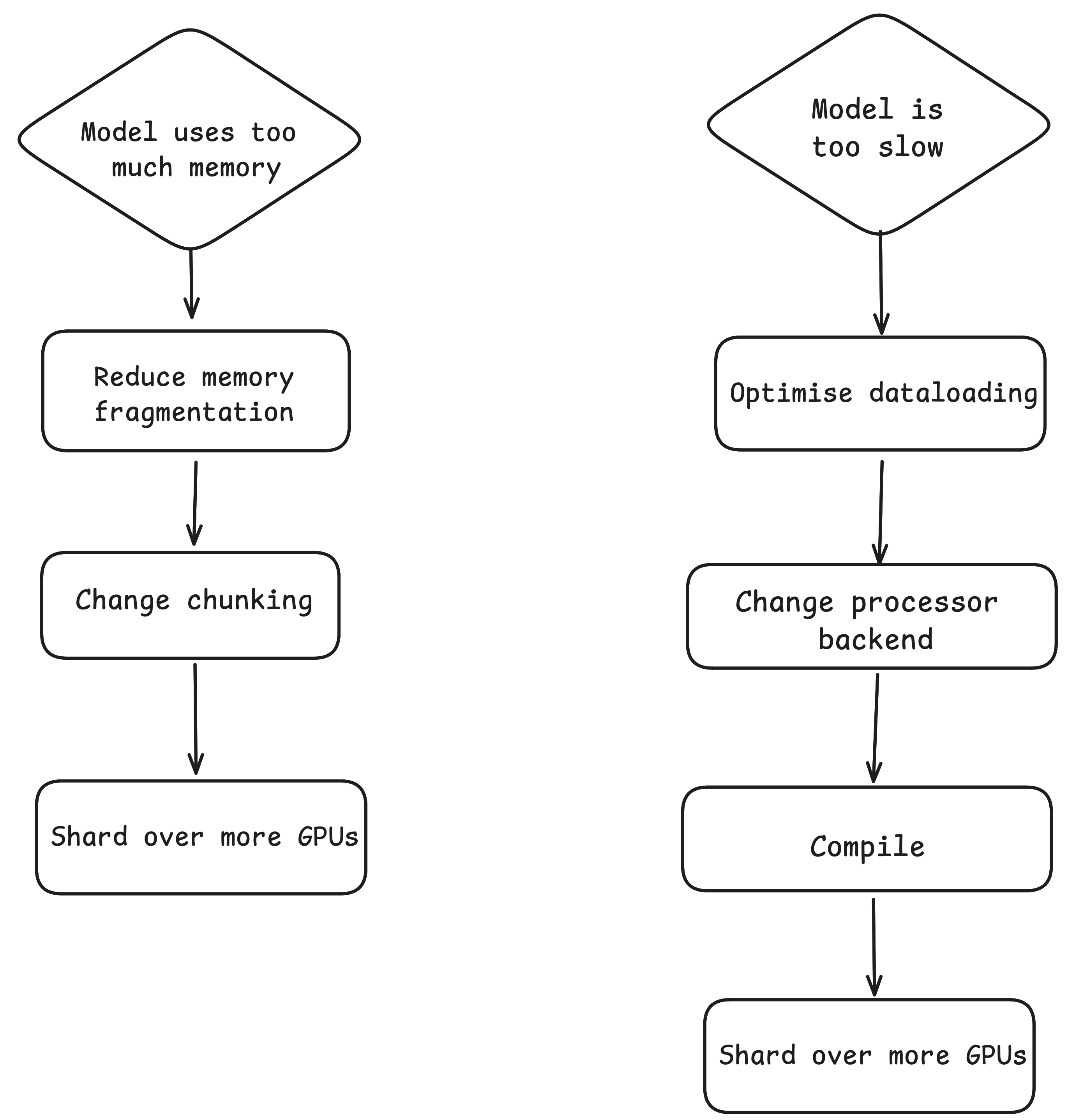
This guide will introduce you to what you can change your models performance. It is structured as a flowchart you can follow when debugging performance issues with your models.
Note
This guide assumes a batch size of 1 e.g. 1 single PyTorch DistributedDataParallel (DDP) model instance. It is recommended to follow this guide to work out the optimal performance settings for a single model instance. Then the total number of model instances can be scaled up via DDP. The optimal settings and runtime should not change.
Memory
Memory issues typically appear as a “CUDA Out Of Memory” error. These typically occur in the first few iterations of your model.
torch.OutOfMemoryError: CUDA out of memory. Tried to allocate 8.60 GiB. GPU 0 has a total capacity of 39.56 GiB of which 4.79 GiB is free.
If Out Of Memory errors occur much later on in your run, this could indicate a memory leak. The memory profiler can be used to identify a memory leak.
Reduce Memory Fragmentation
The first step to getting past an out-of-memory error is to reduce memory fragmentation. Over the course of a run, blocks of GPU memory are allocated and freed many times. This can lead to relatively small gaps occurring between allocated blocks of memory. These gaps taken altogether, might be sufficient to store a large tensor, but since they are fragmented they cannot be used. Instead a CUDA out-of-memory error is raised.
The easiest way to tell if your memory is fragmented is to read the CUDA out-of-memory error.
torch.OutOfMemoryError: CUDA out of memory. Tried to allocate 3.15 GiB. GPU 0 has a total capacity of 39.56 GiB of which 6.80 GiB is free. Including non-PyTorch memory, this process has 36.61 GiB memory in use. Of the allocated memory 31.66 GiB is allocated by PyTorch, and 4.11 GiB is reserved by PyTorch but unallocated. If reserved but unallocated memory is large try setting PYTORCH_CUDA_ALLOC_CONF=expandable_segments:True to avoid fragmentation.
The error message states there was an error allocating a 3GiB tensor, but that 4GiB of memory is reserved but not allocated. This is memory which is unusable due to memory fragmentation.
To resolve memory fragmentation the following environment variable can be set
export PYTORCH_CUDA_ALLOC_CONF=expandable_segments:True
If you are launching jobs via SLURM, this line can be put at the top of your SLURM batch script. This environment variable works for most GPUs tested (Nvidia A100, H100, GH200 and AMD MI250x). It is currently not supported on AMD MI300A (due to the unified physical memory) and CPUs (which do not use the CUDA caching memory allocator).
For a technical explanation of the CUDA Caching memory allocator, and how memory fragmentation occurs, you can read this blog post.
Chunking
Memory usage in anemoi varies greatly across a run. Memory usage typically peaks during the encoder and decoder phases, as the model must iterate over many edge connections to compute the mapping between source and latent grids.
The image below shows memory usage in a single iteration (forward and backward pass). The 4 large peaks represent, in order: fwd-encoder, fwd-decoder, bwd-decoder, bwd-encoder.
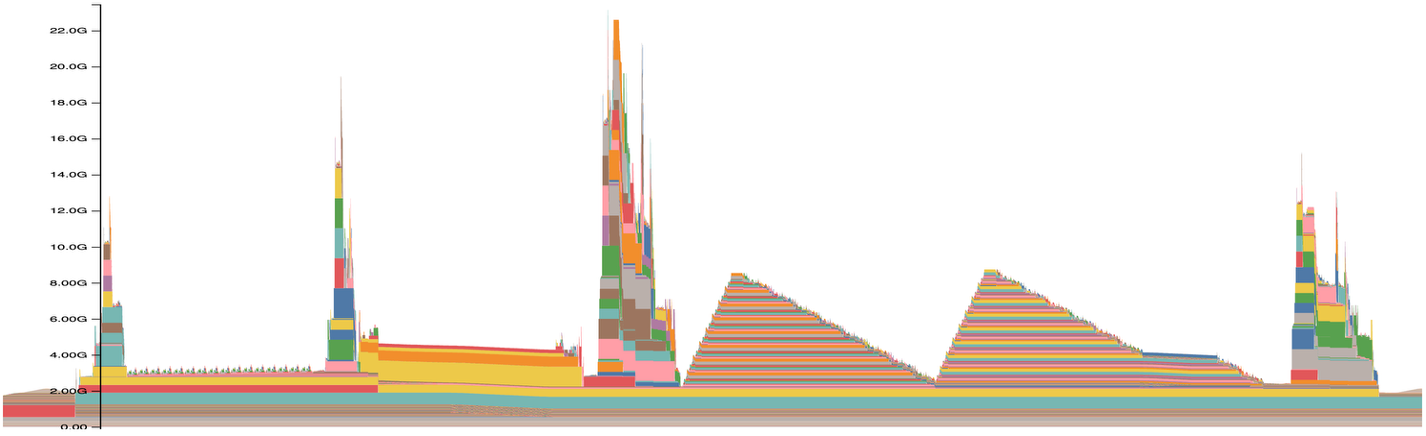
Peak memory usage in the mappers can be greatly reduced by computing the mappers sequentially in smaller chunks.
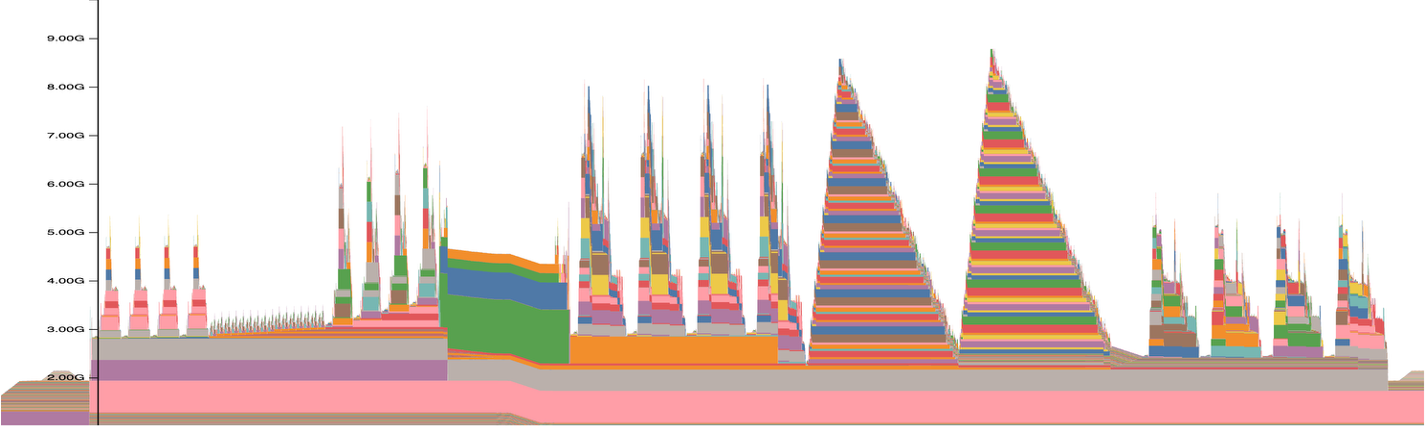
In the example above the number of mapper chunks has been increased from 1 to 4. Subsequentially the peak memory usage has decreased from ~22GB to ~9GB.
Chunking defaults to 4 for the encoder and decoder and 2 for the processor (lower resolution). Chunking can be controlled using the following config parameter
model.encoder.num_chunks=... model.processor.num_chunks=... model.decoder.num_chunks=...
The number of chunks should always be a power of two.
Processor chunks can be increased to a maximum of the number of layers in a model, by default 16. The number of processor chunks has no impact on performance.
There is no hard limit on how much the mappers can be chunked. However there is typically a small (~10%) performance penalty from 16 chunks and beyond. Additionally the memory savings of higher chunk counts begin to drop off. Therefore it is recommended to chunk between 4 and 16 in the mappers.
It is often possible to determine from reading the CUDA out-of-memory stacktrace in which component of the model the OOM occurred. This can inform you about which num_chunks parameter to change.
Note
Chunking the mappers requires model.encoder/decoder.shard_strategy:
'edges'. This is the default since anemoi-models v0.6.0.
Note
At inference time the chunking can be changed using the following environment variables:
export ANEMOI_INFERENCE_NUM_CHUNKS_MAPPER=... ANEMOI_INFERENCE_NUM_CHUNKS_PROCESSOR=...
Gradient Checkpointing
Gradient checkpointing is a technique that trades compute time for memory. During backpropagation, intermediate activations are normally stored to compute gradients. With gradient checkpointing enabled, these activations are recomputed on-the-fly during the backward pass instead of being stored.
This can significantly reduce peak memory usage at the cost of increased computation time.
Gradient checkpointing is enabled by default for all model components (encoder, processor, decoder). To disable it for faster training when memory is not a constraint:
model:
  encoder:
    gradient_checkpointing: False
  processor:
    gradient_checkpointing: False
  decoder:
    gradient_checkpointing: False
You can also enable/disable checkpointing independently for each component. For example, to only checkpoint the mappers (encoder and decoder), which typically have the highest peak memory usage:
model:
  encoder:
    gradient_checkpointing: True
  processor:
    gradient_checkpointing: False
  decoder:
    gradient_checkpointing: True
Note
Disabling gradient checkpointing will increase memory usage but can lead to pronounced speedups in training. This is recommended when you have sufficient GPU memory and want to maximize training throughput.
Memory Profiling
For further insights on the memory usage of your model, you can use the memory profiler.
Performance
Optimise the dataloading
One reason for slow performance could be that your CPU and filesystem cannot load input data fast enough to keep up with your GPU. This results in your GPU stalling at the start of an iteration while it waits for the CPU to provide the next input batch.
To determine whether a configuration is dataloader-bound, run the same
configuration with dataloader.fake_dataloading=True. This loads the
first real sample and reuses it for subsequent batches, preserving valid
shapes and numerical values while removing repeated dataset reads.
A significant increase in throughput indicates that dataloading is the
bottleneck. Possible fixes are to increase the number of workers when
sufficient CPU memory is available, move the dataset to a faster or
less congested filesystem, or rechunk the dataset along the grid
dimension to better match the access pattern (if gpus_per_model is
greater than 1).
By default, each GPU will spawn 8 workers. Each worker will load data in parallel. You should try to increase this number until you run out of CPU memory. A CPU out of memory error looks like:
slurmstepd: error: Detected 4 oom_kill events in StepId=39701120.0. Some of the step tasks have been OOM Killed.
Below are some other settings which impact dataloader performance, and their recommended settings
#training/config/dataloader/native_grid.yaml

# prefetch_factor > 1 only seems to increase memory required by dataloader processes without giving a speedup.
prefetch_factor: 1
# Reduce the time needed to transfer data from CPU to GPU by copying the input batch into a pinned memory buffer on the CPU.
pin_memory: True

#dataloaders read in parallel.
#Only impactful if system.hardware.num_gpus_per_model > 1
read_group_size: ${system.hardware.num_gpus_per_model}
Note
Dataloader workers run on the CPU and require CPU cores and memory. If you are running on slurm you should ensure you have allocated the maximum number of CPU cores and memory required. For example on a node with 4 GPUs and 128 CPU cores
#SBATCH --ntasks-per-node=4
#SBATCH --gpus-per-node=4
#SBATCH --cpus-per-task=32 # 128 cores / 4 tasks = 32 cores per task
#SBATCH --mem=0 # '0' is shorthand to request a CPU nodes entire memory
Note
Dataloader CPU memory can increase as the active rollout length grows. Longer rollouts might require reducing the number of workers.
Change attention backend
The processor is a large component of the overall runtime. Both the GraphTransformer and Transformer processors support multiple backends which have different performance characteristics.
For the Transformer processor, the ‘flash attention’ backend is the fastest. Flash attention can be selected in the config like so:
model.processor.attention_implementation: 'flash_attention'
Flash attention is currently available on Nvidia and AMD GPUs only. On Nvidia GPUs, there are multiple versions of the flash attention library (2, 3 and 4) corresponding to different hardware generations (Ampere, Hopper and Blackwell) which take advantage of hardware-specific features for further speedups.
Flash attention is not the default as it must be compiled from source.
The Transformer processor also supports a Triton backend. Its speed is close to flash-attention 2. It is supported on Nvidia and AMD GPUs. It is enabled by default for the processor. The Triton backend does not support cross attention, so the encoder and decoder of the transformer mappers use PyTorch’s scaled dot product attention by default. It can be selected in the config like so:
model.processor.attention_implementation: 'triton_attention'
For the GraphTransformer processor, the ‘triton’ backend is the fastest. To use the ‘triton’ backend set the following config option:
model.processor.graph_attention_backend: "triton"
Triton is the default backend when using the GraphTransformer processor. However it requires the ‘triton’ library to be installed. On AMD systems the library is called ‘pytorch-triton-rocm’. Triton is not officially supported on CPUs.
Note
The attention backend for both the Transformer and GraphTransformer processors can be overridden at runtime using environment variables, without modifying the model config. This is useful when switching backends at inference time.
# Override the Transformer attention backend
export ANEMOI_INFERENCE_TRANSFORMER_ATTENTION_BACKEND='scaled_dot_product_attention'

# Override the GraphTransformer attention backend
export ANEMOI_INFERENCE_GRAPHTRANSFORMER_ATTENTION_BACKEND='pyg'
The override is applied once on the first forward pass. Valid values
are the same as the corresponding config options (e.g.
flash_attention, scaled_dot_product_attention for the
Transformer; triton, pyg for the GraphTransformer).
Compiling
PyTorch can improve performance by compiling PyTorch code into Triton code at runtime.
Anemoi supports compilation via the ‘models.compile’ keyword, which takes a list of modules to be compiled.
#training/config/models/graphtransformer.yaml
compile:
   - module: anemoi.models.layers.conv.GraphTransformerConv
   - module: anemoi.models.layers.normalization.ConditionalLayerNorm
     options:
       dynamic: False
For information on how to compile see the compilation documentation for anemoi.
The following modules have been found to give a speedup from compilation:
anemoi.models.layers.conv.GraphTransformerConv (when not using the triton backend)
anemoi.models.layers.normalization.ConditionalLayerNorm (when using the ensemble model)
torch.nn.LayerNorm
Compiling can also decrease the peak memory required by fusing multiple functions into a single one which reduces the intermediate activations that must be stored.
Not all modules are able to be compiled, and some compilation errors can be difficult to debug.
Note
Compiling the triton backend of the GraphTransformer will not have an effect, since it is already in triton.
Note
The triton backend currently uses more memory than the compiled pyg due to the need to store edges in an intermediate CSC form during the forward pass. If memory is a limiting factor it might be worthwhile to switch to the compiled pyg attention backend, once other fixes such as chunking are exhausted.
Performance Profiling
For further insights into your runtime performance, you can take the traces produced by the pytorch profiler and upload them to perfetto.